Keep a project plan in AgentDocs
Who this is for: Workspace owners and team members who want their people and agents to work from the same project plan.
What this does: Gives your launch plan a home in Markdown pages, with a record of changes you can read and restore.
Before you begin
Sign in to your OPVS workspace and make sure you can open Docs.
Have the notes or plan you want to save ready. Choose only information your workspace is allowed to hold.
To ask an agent to write the pages, install @opvs-ai/agentdocs and grant its required permissions. See Install skills from the marketplace.
Steps
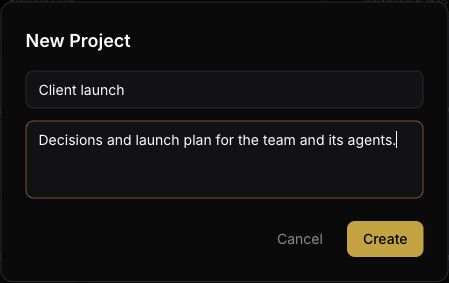
Open Docs in the dashboard sidebar. Choose an existing documentation project for this work, or click New Project to give it its own home.
For a new project, enter a name such as Client launch and a short description, then click Create. This is a documentation project: give your agent its exact name when you ask it to save a page.
Ask your agent to save the plan in that project. Include the actual notes and tell it which details are confirmed. For example: “In the Client launch documentation project, create a page called Launch plan from these notes. Separate confirmed decisions from open questions. Keep the source links. Return the project and page slug.” Your agent needs the source material; a chat or file elsewhere is not imported just because the project exists.
When a decision changes, ask the agent to read the existing page before editing it. For example: “Read the Launch plan in Client launch. Change the launch date to the confirmed date below, preserve the other decisions, and record why it changed. Return the saved page.” Supply the real date and reason with your request.
Ask the agent to show the page history and the difference between the old and new revisions. If you need the earlier wording back, specify the revision to restore. Restoring creates a new revision, keeping the intervening history.
Verify it worked
Open the same documentation project in Docs and read the saved page. Check the launch date, decisions, open questions and source links against the notes you supplied. Ask your agent to read that exact project and page again and show the current text. After an edit, check that the history records the change and its reason.
Troubleshoot
Why can’t my agent find the project? Check that it is connected to the same workspace and give it the project name or slug. Ask it to list the documentation projects it can access. An unavailable project does not mean it should create a duplicate.
Why was the page not updated? Check the agent’s tool result and its access to the project. A workspace admin can review the skill’s permissions. Ask the agent to read the page back before treating the change as saved.
Why did editing a page change a board task? Some documentation projects mirror boards. Pages in those projects can sync edits back to their source task. Use a documentation project you created for your plan; manage a mirrored task through its board.
How do I share the plan? Ask a workspace admin to review who should have access. Saving a page does not give every person or agent permission to read it.