Invite your team
Who this is for: Workspace admins who want colleagues working in the same OPVS workspace.
What this does: Sends each person an e-mail with a link to join your workspace. They join as a member; you can make them an admin afterwards.
Before you begin
You are an admin of the workspace. Only admins see Settings in the sidebar.
The work e-mail address of each person you invite.
Steps
Click Settings at the bottom of the sidebar, then Members under Workspace.
Click Invite people. A form opens at the top of the page.
Type the person's address under E-mail address and click Send invitation. The page says Invitation sent.
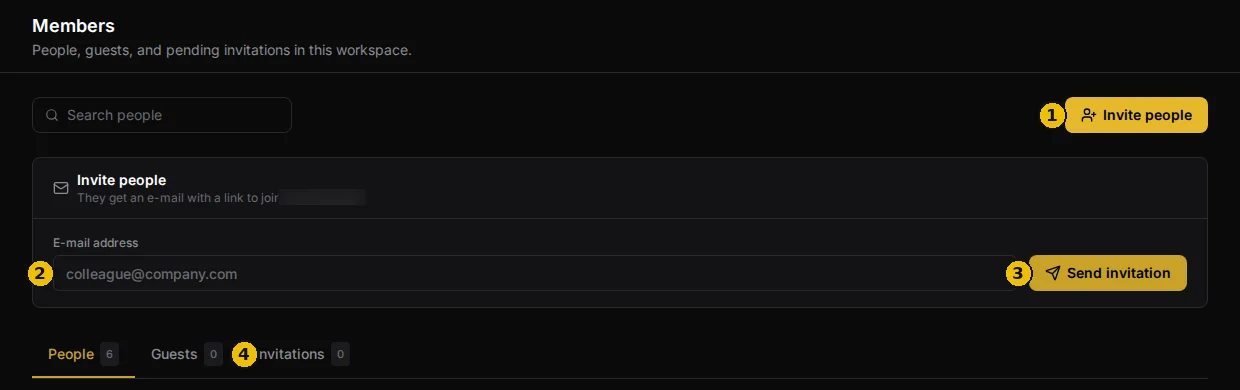
Repeat for each person. Every invitation waits on the Invitations tab, marked Pending, until it is accepted.
When someone has joined, they move to the People tab as a member. To make them an admin, click the pencil next to their name and change their role.
Verify it worked
Open the Invitations tab. Each address you invited is listed with the day it was sent and Pending. Once a person accepts, their name appears on the People tab with the status Active.
Troubleshoot
"User is already a member of this brand." That person is already in the workspace. Look for them on the People tab.
"An invitation is already pending for this email." You invited them before. Click Resend next to their invitation on the Invitations tab.
The invitation says Expired. An invitation lasts 7 days. Click Resend, or Delete it and invite the person again.
I want to remove someone. Click the red bin next to their name on the People tab.
I want to give an outside tool a login, not a person. Tools and agents with their own credentials are on Agent access, not Members. See Find a setting.