Order a workstation
Who this is for: Workspace admins who want a builder employee or a dev agent to work on a machine of their own.
What this does: Connects a Linux server (a VPS you rent from any hosting provider) to OPVS as a workstation. OPVS installs every coder on it, and your builders work at its desks.
A workstation belongs to your workspace and no one else's. When you hire a builder from the catalog, OPVS usually gives it a desk for you, so you only need these steps to add a machine yourself.
Before you begin
You are an admin of the workspace, and the Machines feature is on. See Turn a feature on or off.
A Linux server you can log in to, as
rootor as a user who can usesudo.A free machine slot on your plan. The Add a machine window says how many are in use.
Steps
Click Settings at the bottom of the sidebar, then Machines under Building.
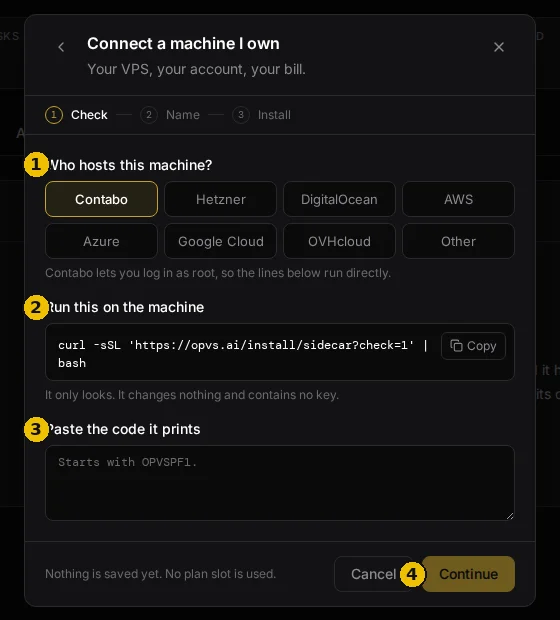
Click Add a machine, then Connect a machine I own. (When OPVS has machines of its own free, you can also choose Use one of ours, with no terminal and no key.)
Under Who hosts this machine?, pick your provider: Contabo, Hetzner, DigitalOcean, AWS, Azure, Google Cloud, OVHcloud or Other. OPVS then shows the line in the right form: on AWS, for example, it runs through
sudo.Copy the line under Run this on the machine and run it in a terminal on your server. It only looks: it changes nothing and contains no key.
Paste the code it prints (it starts with
OPVSPF1.) into Paste the code it prints, and click Continue. OPVS lists what it found, such as admin rights and whether a firewall is in the way.
On Name this machine, keep or change the Machine name, which OPVS took from the server. Choose its Main coding tool, then click Add this machine.
Copy the install line OPVS shows and run it on the same server. It contains a private key, so treat it like a password. If you lose it, make a new line from the same window.
Watch the steps tick off: Run the install line, Connect to OPVS, Start up, Ready for work. It takes about a minute and a half. You can close the window and come back: the machine stays in your list as Setup unfinished until it is ready.
Verify it worked
The window says This machine is ready. The machine is listed on the Machines page, and your builders and dev agents can take work there. They show on the Agents page too. See Work with your agents.
Troubleshoot
Setup is stuck at Connect to OPVS. The line ran, but the machine could not connect. Run the line again, and check that the server's firewall lets it connect out. The install opens no public ports on your server.
The install refuses and asks for sudo. You are not logged in as
root. Run the line throughsudo, as OPVS shows it for providers such as AWS and Azure. A refused install changes nothing."OPVS is already on this machine, for another workspace." Use a different machine, or ask that workspace to remove it first.
"Your plan is full." Nothing was saved. Remove a machine you no longer need, or upgrade your plan. A machine OPVS has not heard from for more than two weeks no longer counts against your plan; it comes back by itself the moment it reports in.
The machine stopped answering. Check that the server is switched on and online. A paused machine takes no work until you resume it.
More than one desk on a machine
A machine you have already connected can carry more coders. In Add a machine, choose Add a coder to a machine I have: it needs no new key and no new connection, and each coder gets its own folder, so their logins stay apart.
A machine can also host a desk for a different OPVS customer, but only if you turn that on in the machine's Settings. It is off on every machine until you do. You are told how many guest desks are on your machine, never whose they are.