Find a setting
On this page
Who this is for: Workspace admins looking for a setting, and members looking for their own profile.
What this covers: The groups in Settings, the address of every settings page, and who can open each one.
Settings has one rule. A setting that is only about you is under My account. A setting that applies to everyone in the workspace is under Workspace. A setting that belongs to one board, project or agent stays on that board, project or agent.
Open Settings
Workspace admins: click Settings at the bottom of the sidebar.
Everyone: click your name at the bottom of the sidebar, then Profile or Notifications.
The sidebar turns into the settings menu. Back to app at the top returns you to the page you were on.
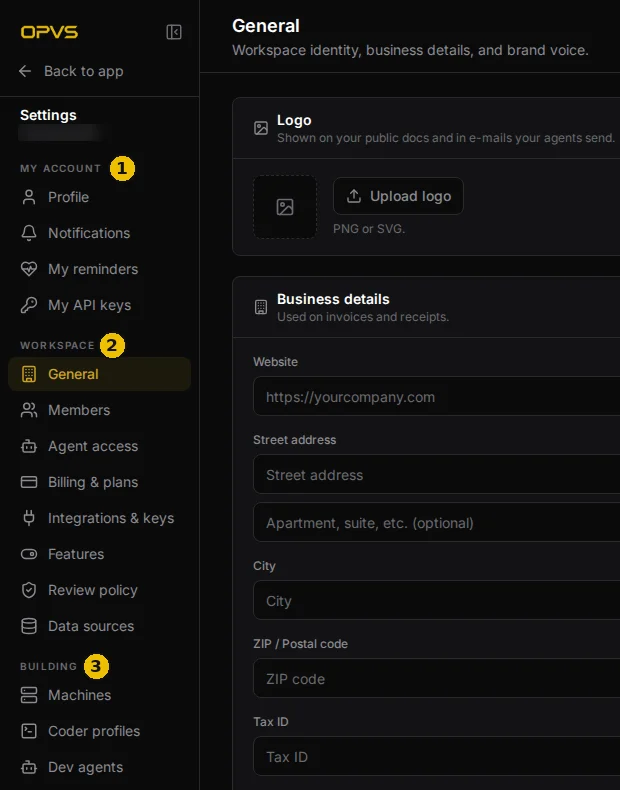
My account
Everyone in the workspace can open these pages.
Page | Address | What it holds |
|---|---|---|
Profile |
| Your name and picture, your password, your OPVS address, Light, Dark or System appearance, and the accounts you sign in with. |
Notifications |
| Which updates reach you, and when. |
My reminders |
| Your own reminders: times and waits, each with a message and the channel it reaches you on. |
My API keys |
| Your own keys for the OPVS command line, the MCP server and the API. |
Workspace
Only workspace admins can open these pages. A member who follows a link to one lands on their own Profile instead.
Page | Address | What it holds |
|---|---|---|
General |
| The workspace's logo, business details and brand voice. |
Members |
| People, Guests and Invitations. Invite people, change a person's role, or remove them. See Invite your team. |
Agent access |
| Agents and outside tools that work in your workspace with credentials of their own. |
Billing & plans |
| Your plan, the billing portal and pay-per-use controls. See How billing works. |
Integrations & keys |
| Keys for outside providers, GitHub, and the mailboxes your workspace sends from. |
Features |
| Which optional features your workspace uses. See Turn a feature on or off. |
Review policy |
| The AI review setting every new project starts with. |
Data sources |
| The data sources every new project starts with. |
Opening app.opvs.ai/settings on its own takes an admin to Members.
Building
This group appears only when the Machines feature is on, and only admins can open it. It is for workspaces that run coding agents on their own machines.
Page | Address | What it holds |
|---|---|---|
Machines |
| The servers and desks where coders and dev agents work. See Order a workstation. |
Coder profiles |
| How each installed coder handles each kind of task. |
Dev agents |
| Long-running development agents and the desks they work at. |
Settings for one area
Boards, Docs, Mail, Rooms, Memory, Skills, Feed, Machines and CRM each have a page of workspace-wide settings. Open them from Settings → Workspace → Features: every area has a link to its own settings there. Their addresses follow one pattern: app.opvs.ai/settings/services/ followed by the area's name, for example app.opvs.ai/settings/services/boards. Only admins can open them.
Settings that stay on the thing
A setting that belongs to one board, project or agent is not in this menu. Open the board or project and use its Settings tab. An agent's settings are on that agent's own page under Agents.