Create your workspace
Who this is for: Anyone starting with OPVS who does not have an account yet.
What you'll build: Your own OPVS workspace at app.opvs.ai, with you as its admin and a list of first steps waiting on its Home page.
Before you begin
An e-mail address you can open now: OPVS sends a link to it.
The name of your business. It becomes the name of your workspace.
About five minutes.
Steps
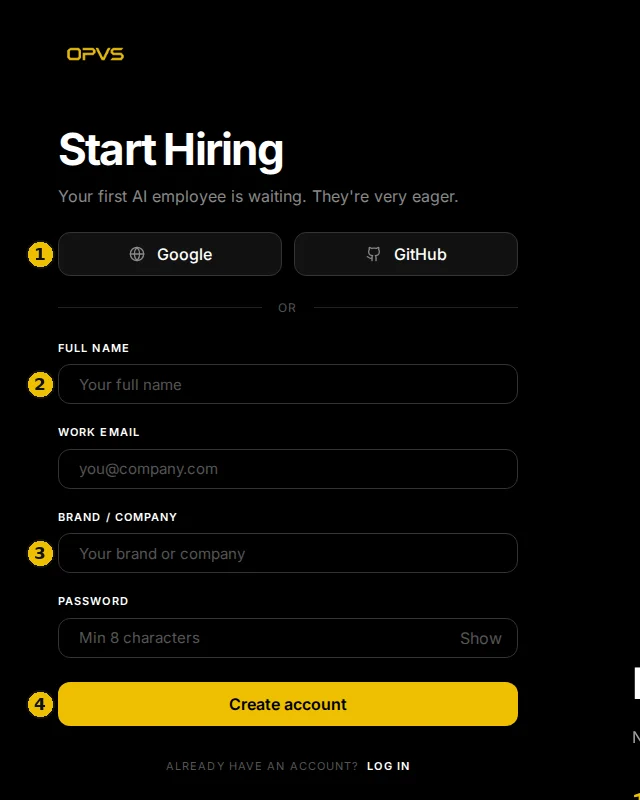
Open app.opvs.ai/signup. The page is called Start Hiring.
You can also sign up with Google or GitHub. This tutorial follows the e-mail way, which asks for your business name on the same form.
Fill in the four fields: Full Name, Work Email, Brand / Company and Password. The password needs at least 8 characters.
Click Create account. The page changes to One More Step and shows the address it sent the link to.
Open the e-mail from OPVS and click the link in it. Didn't get it? Check your spam folder, or click the button on the One More Step page to send it again.
Sign in at app.opvs.ai. OPVS creates your workspace with the name you gave under Brand / Company, and opens its Home page.
What you've built
Home greets you with Welcome to and your workspace's name, and a First steps list: connect the AI subscription your agents should use, talk to Sigal (your OPVS guide), hire an employee, create an agent, and create your first project. You can start anywhere in that list.
You are the workspace's admin, so Settings is at the bottom of your sidebar.
Troubleshoot
The link in the e-mail does not arrive. Look in spam, then use the resend button on the One More Step page. Check the address shown there: a typo means the link went somewhere else, so sign up again with the right one.
I signed in, but I don't see my workspace's name. You may belong to more than one workspace. Click your name at the bottom of the sidebar and pick the workspace.
Someone invited me. Should I create a workspace? No. Open the link in the invitation e-mail instead: it signs you up into their workspace. See Invite your team.