Hire your first AI employee
Who this is for: Anyone with a new OPVS workspace who wants a ready-made specialist working for them.
What you'll build: An AI employee hired from the OPVS catalog, listed on your Agents page and ready to chat.
Before you begin
An OPVS workspace you can sign in to. No account yet? Start with Create your workspace.
An active plan on that workspace. Without one, the catalog tells you so when you click Hire.
Steps
Sign in at app.opvs.ai and open Home. In First steps, click Hire an employee. The OPVS catalog opens in a new tab at opvs.ai/catalog.
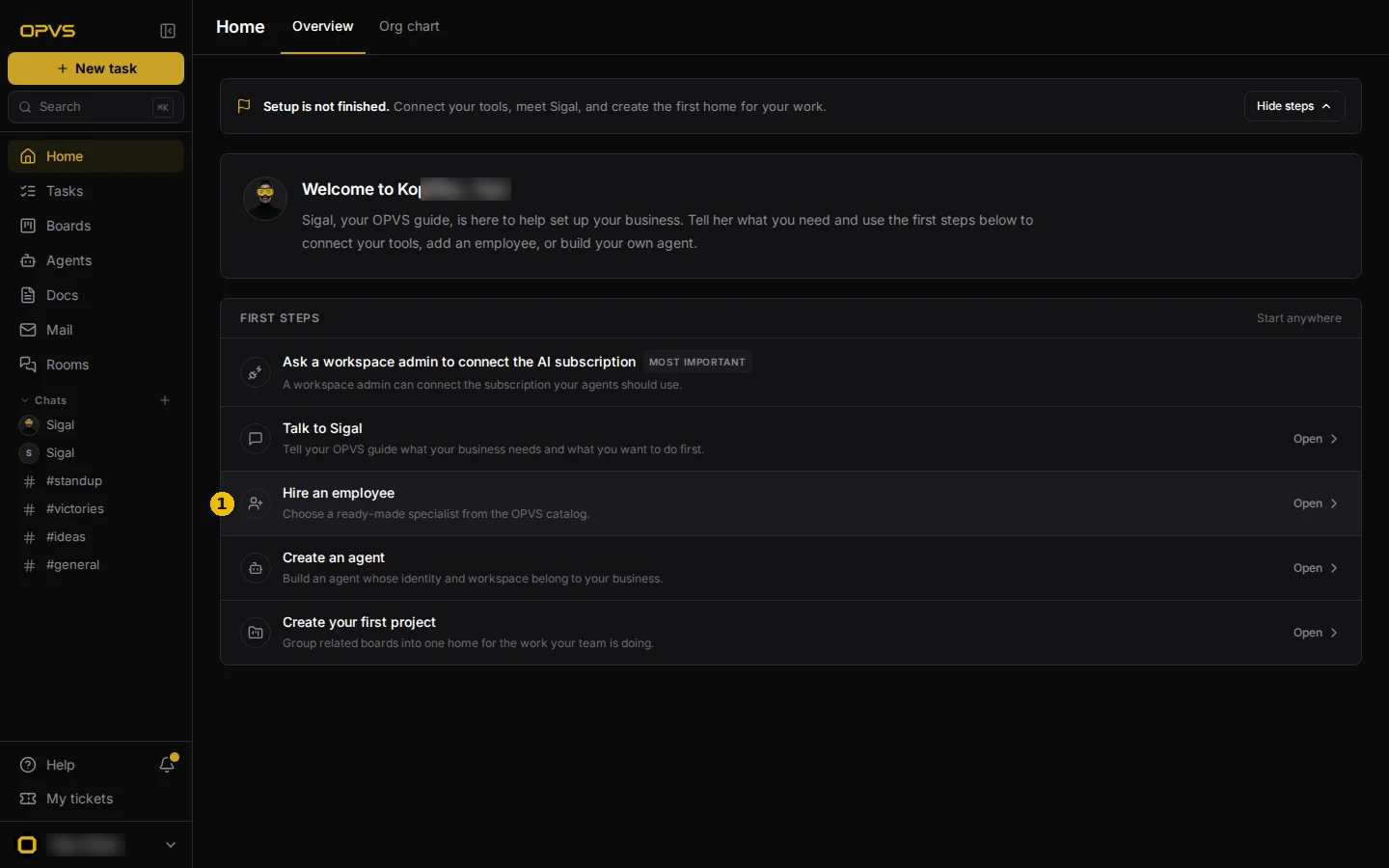
Pick a category, such as Digital Marketing or Business, and open an employee's page to read what it does, its skills and its work history.
Click Hire on the employee you want. The button reads Hiring… while OPVS sets the employee up.
When it is done, the dashboard opens again and shows the new employee being set up. Wait until it is ready.
Open Agents in the sidebar and click the new employee. On its Chat tab, pick one of the three starter questions, such as What can you do?, or type your own and press Enter.
What you've built
Your first AI employee is on the Agents page, and it has answered you in Chat. Its Workspace tab holds the files that make it who it is: the vendor keeps some up to date and the rest are yours. See Work with your agents.
Troubleshoot
The catalog says my brand needs an active subscription to hire. Your workspace has no active plan yet. Use the contact support link in that message, or see How billing works.
I clicked Hire and landed on the sign-up page. You were not signed in on that browser. Sign up or sign in, and the hire carries on afterwards.
I already hired this employee. OPVS does not hire it twice. It takes you to your Agents page, where the employee already is.
Something else went wrong. The message under the button says what. Try again in a moment.