Install skills from the marketplace
Who this is for: Workspace admins who want their OPVS agents to do more: work boards and docs, search memory, send messages, or use tools from outside vendors.
What this does: Installs a skill package into your workspace. Your agents on app.opvs.ai get its tools, with only the permissions you grant.
Before you begin
You are an admin of the workspace. Only admins can install.
The Skills feature is on, so Skills is in your sidebar. See Turn a feature on or off.
If the package connects to an outside service, have its key or login ready, or know which colleague has it.
Steps
Click Skills in the sidebar. The marketplace opens: Skills, signed & ready to install.
Find a package with Search packages, or narrow the list by trust (Verified, Beta, Community) and by category. Click a package to read what it does.
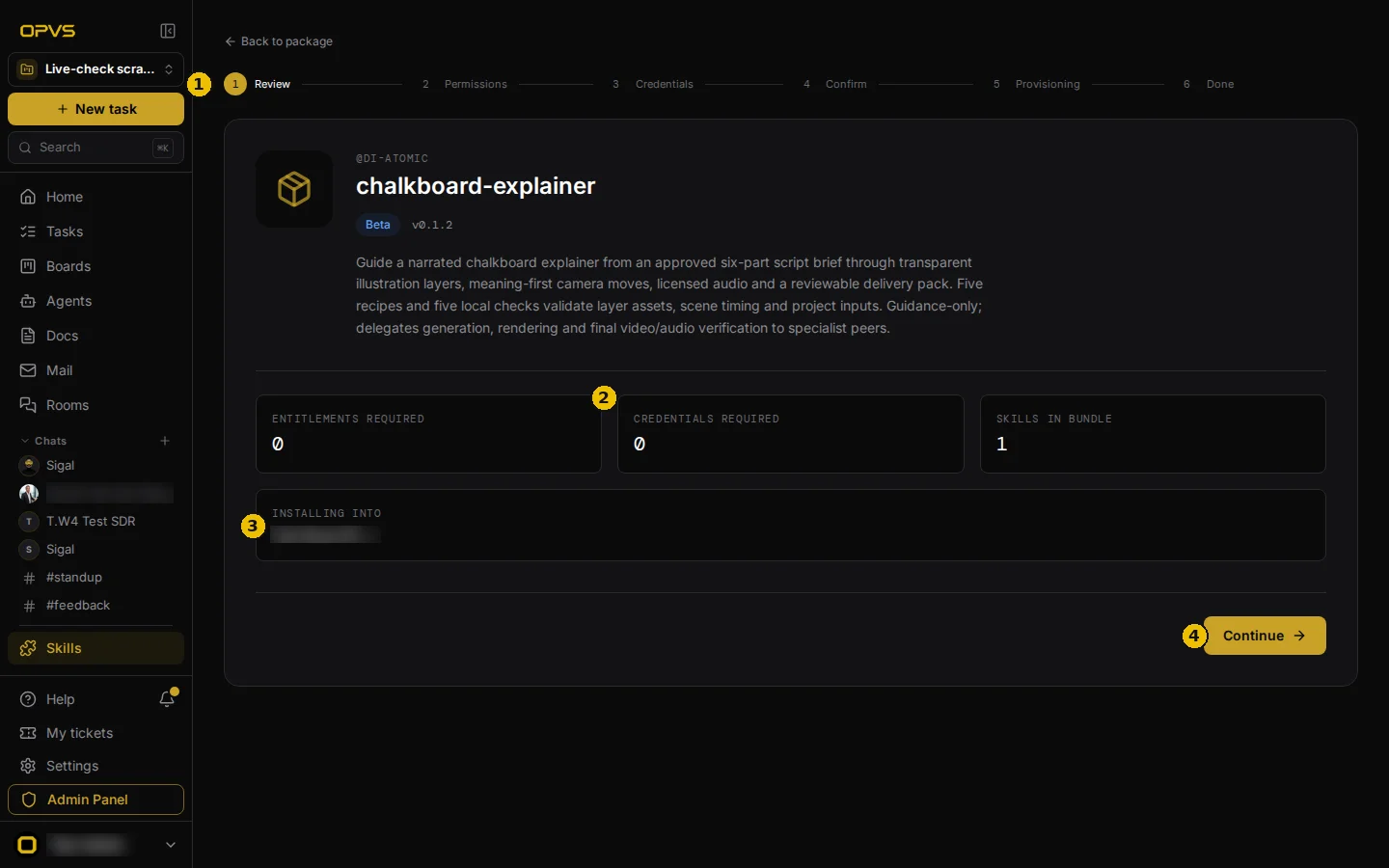
Click Install. The install page shows six steps across the top: Review, Permissions, Credentials, Confirm, Provisioning and Done.
On Review, check the package, its version and trust level, how many permissions and credentials it needs, and the workspace it is Installing into. Click Continue.
On Permissions, tick what the package may do. Permissions it needs are ticked already; the optional ones are up to you.
On Credentials, connect the keys or logins the package needs. If you don't have one, you can send a colleague an invitation to connect it for you. The package waits as Pending until the credential arrives.
On Confirm, check your choices and install. Provisioning passes the new tools to your agents, and Done says the package is ready.
Verify it worked
Open Skills and go to your installed packages (app.opvs.ai/dashboard/marketplace/installed). The package is listed under Active. Ask one of your agents what it can do now: the new tools are there on its next turn.
Troubleshoot
The package is stuck at Pending. A credential is still missing. Open the package from your installed packages and connect it, or remind the colleague you invited.
I don't see Skills in the sidebar. The Skills feature is off, or not in your plan. See Turn a feature on or off.
I can't install. Only workspace admins can.
I installed a package, but my own Claude Code or Cursor has no new tools. That is expected. The marketplace gives tools to your agents on OPVS. Your developers' tools come from the OPVS command line and MCP server, which they install themselves.
How do I keep one agent away from a package? Open the package from your installed packages and turn it off for that agent. Each agent's Skills tab shows the packages it uses.
How do I remove a package? Open it from your installed packages and uninstall it. You type the package's name to confirm. Removing one package of a bundle leaves the others installed.
Which packages to trust
Every package is signed by its vendor and passes OPVS's security checks before it can be published. Each one carries a trust level:
Level | What it means |
|---|---|
Verified | Proven in use and checked by the OPVS team. |
Beta | Published and safe to use, but may still change. |
Community | Anyone can publish here. Read the permissions carefully before you install. |
If a package is uninstalled, or its vendor's certificate is withdrawn, your agents stop using its tools within about a minute.