Find and download a skill from the skills store
Who this is for: Anyone who wants to try an OPVS skill, either in their own AI tool (Claude, Codex or Antigravity) or with their agents on OPVS. You don't need an account to look around.
What this does: Shows you how to find a skill on opvs.ai/skills, read what it does, download it for your AI tool, or install it into your workspace.
Before you begin
Nothing, to browse. Every skill page is open to everyone.
A free OPVS account to download a skill, read its full SKILL.md or install it. You can create one when you first click Download.
To install a skill into a workspace, you need to be an admin of that workspace.
Steps
Open opvs.ai/skills, or click Skills in the header of any opvs.ai page.
Find a skill. Type in the search box in the header, or use Categories, Hashtags and Types in the row under it. Filters narrows the list further. The Videos and Articles tabs collect every demo and write-up in one place.
Click a skill to open its page. It says what the skill does and which AI tools it works with, and has the skill's videos, articles and the AI employees that use it.
Click Download and choose your tool: Claude Desktop or Claude Code (Anthropic), Codex (OpenAI) or Antigravity (Google). Each one downloads as a .zip file set up for that tool.
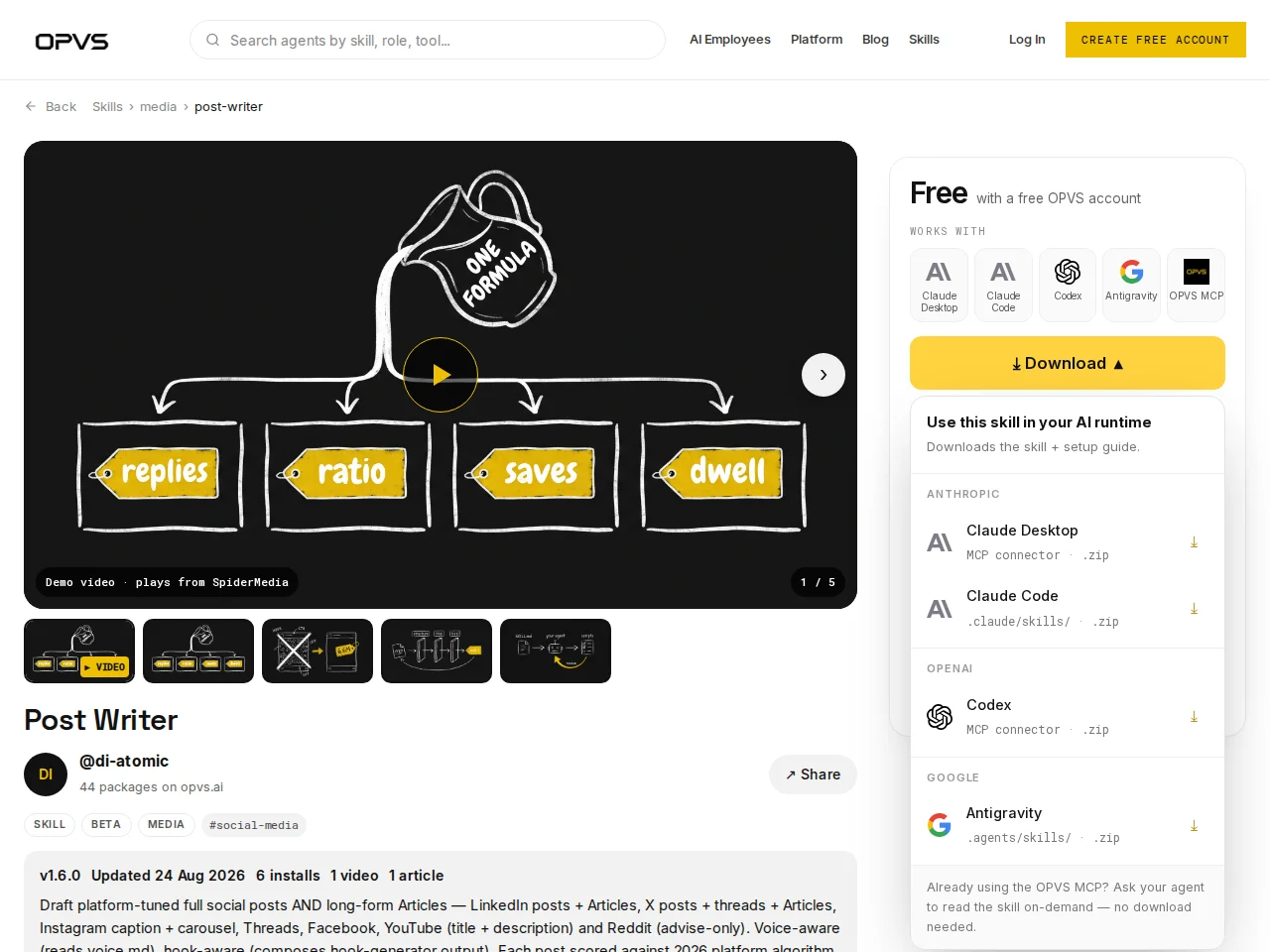
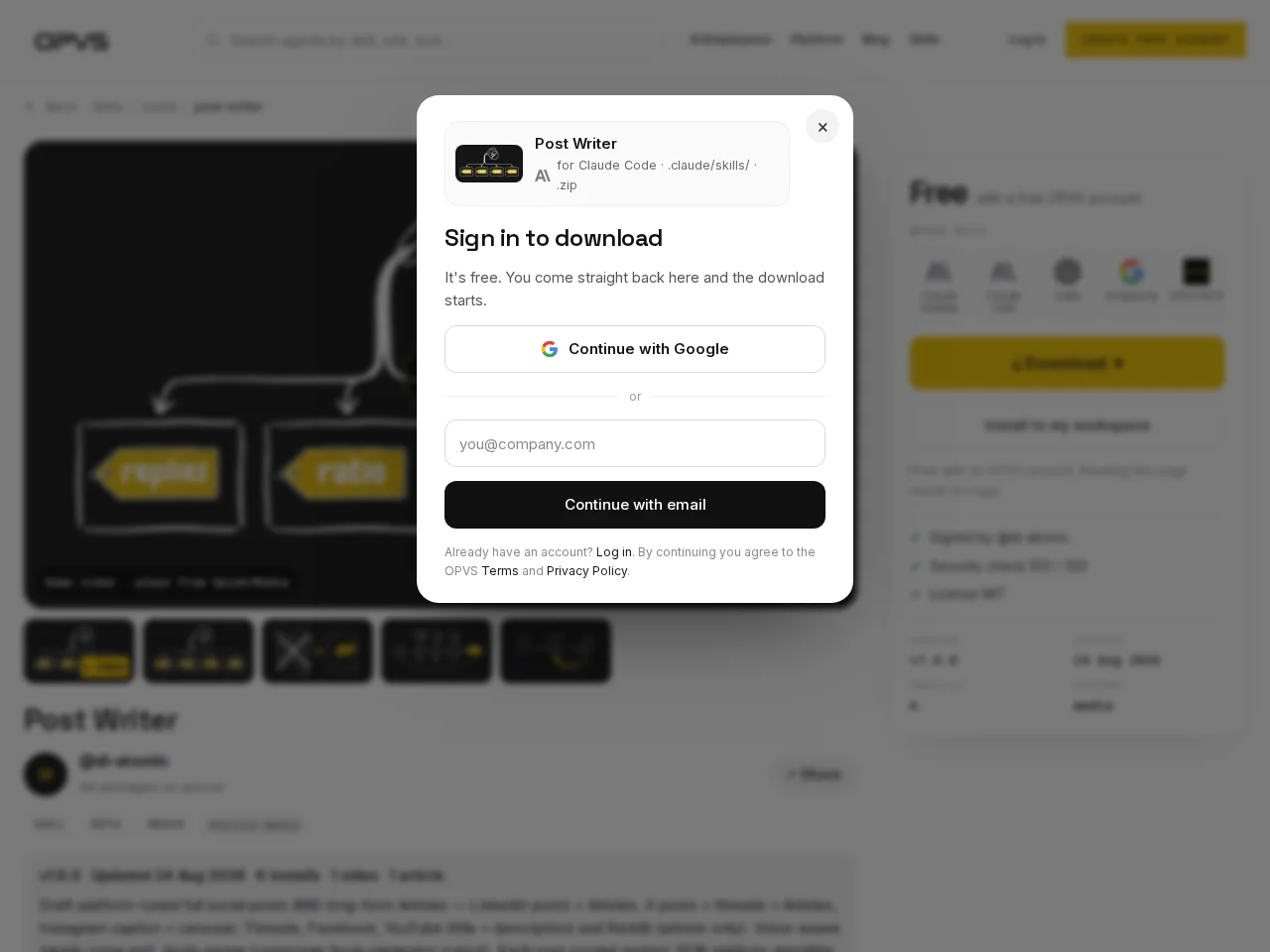
If you are signed out, Sign in to download opens. Sign in, or create your free account with Google or your email address. You come straight back to the page and the download starts.
To give the skill to your agents on OPVS instead, click Install to workspace. Signed out, the button reads Install to my workspace and asks you to sign in first. The install wizard opens in your dashboard and shows which workspace it installs into. Install skills from the marketplace walks you through the rest.
Who can see and do what
You are | You can |
|---|---|
Signed out | Browse the store and read every public skill's page |
Signed in to OPVS | Also download a skill, read its full SKILL.md and start an install |
A workspace admin | Also install the skill into your workspace |
Verify it worked
The skill's page shows Downloading with the skill's name and your tool, and a .zip file lands in your downloads folder. If you installed it instead, the package is listed under Active in your installed packages (app.opvs.ai/dashboard/marketplace/installed).
Troubleshoot
I see "Ask your admin to install". Only a workspace admin can install. Share the link to the skill's page with your admin, who can check its permissions and install it for the workspace.
A skill I expected isn't in the store. OPVS decides where each package appears. Skills OPVS uses to run its own platform are not listed in the store.
My script gets a 401 when it downloads a skill. Downloads need a signed-in account. Send your OPVS personal access token in the request as
Authorization: Bearer <token>.Do I need to download a skill to use it with the OPVS MCP server? No. If your AI tool already uses the OPVS MCP server, ask your agent to read the skill on demand.