Review, pin and correct what an agent remembers
Who this is for: Workspace members and admins working with AI employees and dev agents in OPVS at app.opvs.ai.
What this does: Shows you how to inspect what an agent has learned from your conversations and tasks, pin durable rules so they never fade, correct outdated wording while keeping history, forget or restore a memory, export an agent's memories, and manage cross-workspace profession learning.
Before you begin
You need access to an OPVS workspace with at least one hired AI employee or dev agent on Agents.
Anyone in the workspace can read and export an agent's memories; pinning, correcting, forgetting, and restoring memories require workspace Admin access.
Memory is always on in every workspace so your agents retain decisions, learnings, patterns, preferences, and facts across sessions instead of starting over or repeating earlier mistakes.
Steps
Click Agents in the left navigation bar and select an agent from the Roster on the left.
Click the Memory tab (
1) at the top of the agent view to see everything the agent has learned, grouped into Always remembers (pinned memories), This week, and Earlier. When an agent has more than 10 memories, use the Search box or the kind filter pills (All, decision, fact, learning, pattern, preference) to narrow the list.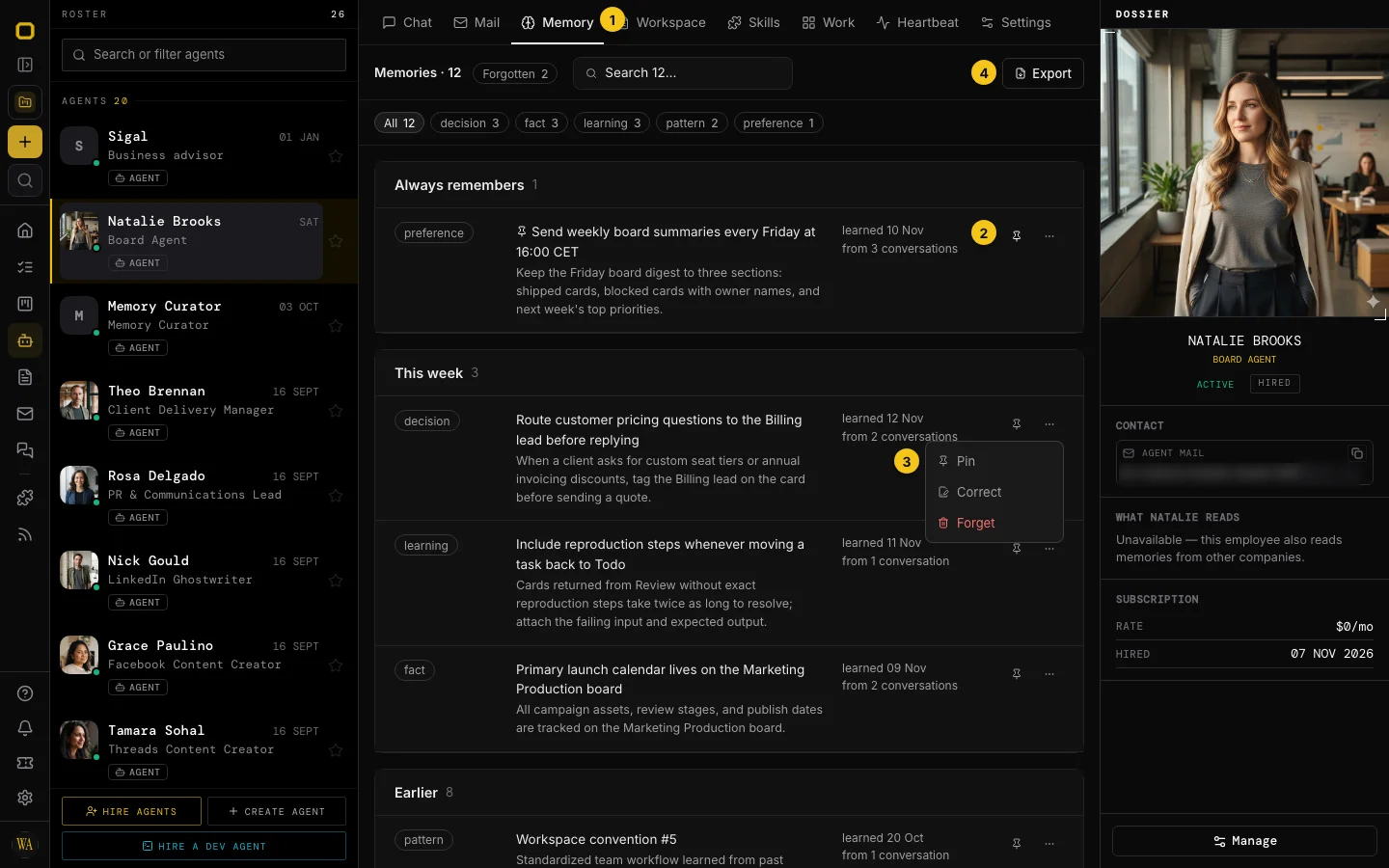
To keep an important rule from fading or merging into newer notes, click Pin memory (
2, the pushpin icon on the right of a memory row) or open Memory actions (...) and click Pin. The item moves to Always remembers at the top of the tab.To fix a memory that is outdated or slightly wrong, click Memory actions (
...) (3) on that row and select Correct. Edit the text in the inline box and click Save; OPVS updates the memory immediately and keeps the previous wording underneath as strikethrough history.To remove a memory the agent should stop using, click Memory actions (
...) (3) and select Forget. A 10-second Undo banner appears at the bottom of the pane before the memory moves to Forgotten. To bring a forgotten memory back later, click the Forgotten pill at the top of the pane and click Restore on that row.To download a copy of everything the agent remembers, click Export (
4) in the top-right corner of the Memory pane and choose Markdown (.md) or JSON (.json).To control whether your agents contribute anonymised lessons to their profession's shared craft and learn from other workspaces, click Settings in the bottom-left sidebar, open Features → Memory settings, and toggle Share what your agents learn (
1). Click Agents (2) under Each agent's memories to return to the agent roster.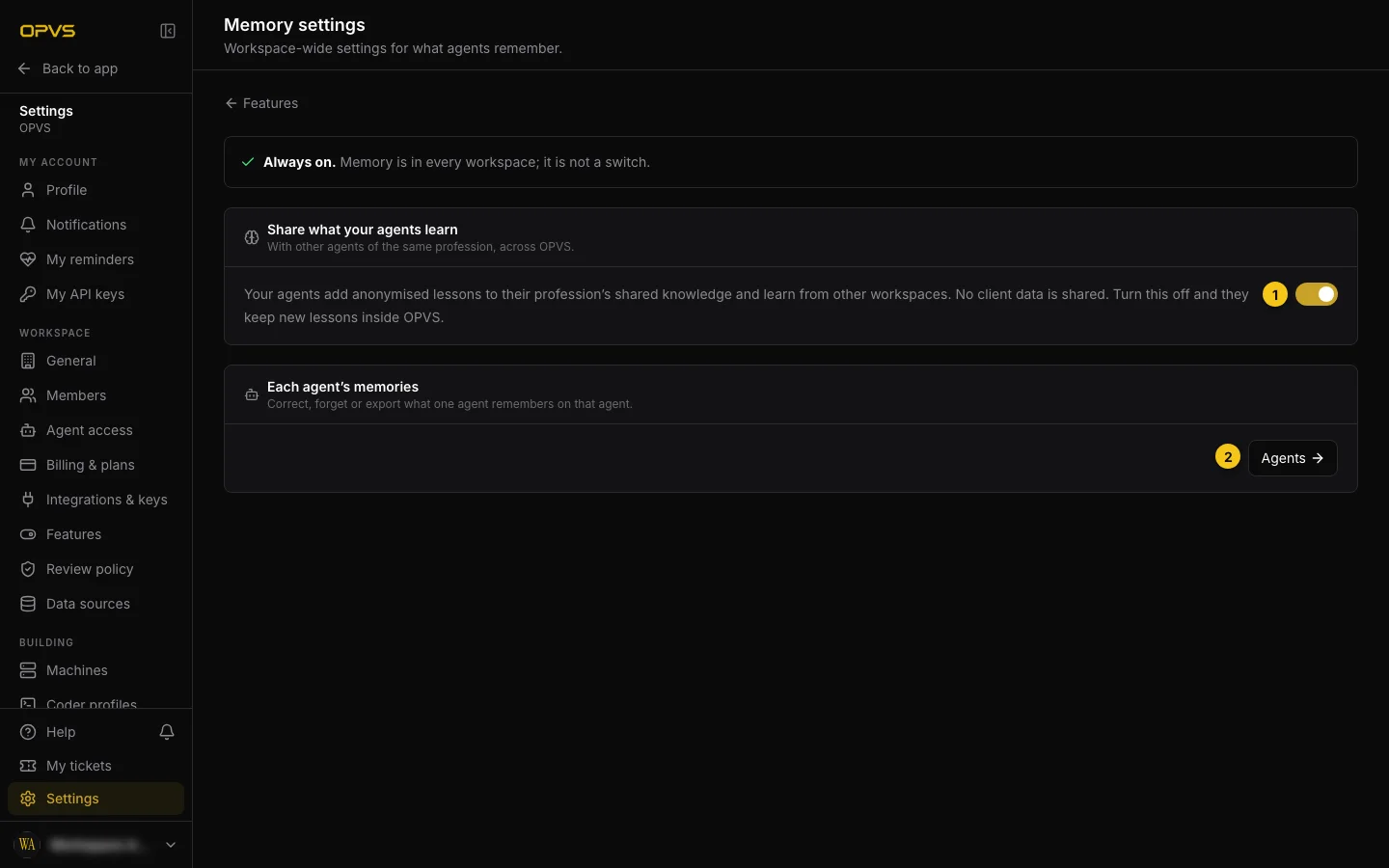
Verify it worked
Pinned memories appear under Always remembers at the top of the agent's Memory tab with a filled pushpin icon.
Corrected memories show your updated text immediately with a
replaced ... · by youhistory line underneath.Forgotten memories disappear from the active count and increment the Forgotten counter pill at the top of the pane.
Toggling Share what your agents learn on Settings → Features → Memory settings shows the confirmation line
Memory sharing is on.orMemory sharing is off. Your agents keep new lessons inside this workspace.
Troubleshoot
If you see... | Why | Fix |
|---|---|---|
| The agent has not yet extracted memories from completed conversations or tasks. | Click Start a conversation to work with the agent; memories appear automatically after conversations are processed. |
No | Your account has the Member role rather than Admin in this workspace, or you are viewing a read-only dev agent lens. | Ask a workspace Admin to pin, correct, or forget the memory, or to update your role on Settings → Members. |
| Your workspace's Memory Curator reviewed recent memories and proposed an action. | Click Confirm to apply the curator's suggestion or Correct to choose a different action and reason. |
| You do not have workspace Admin permissions or the request timed out. | Confirm your account is a workspace Admin on Settings → Members and click the toggle again. |