Find your way around the dashboard
Who this is for: Everyone who works in an OPVS workspace at app.opvs.ai.
What this covers: What each part of the sidebar opens, which parts depend on a feature being on, and which parts only a workspace admin sees.
The sidebar is the same in every workspace. A feature your workspace has turned off is simply not in it.
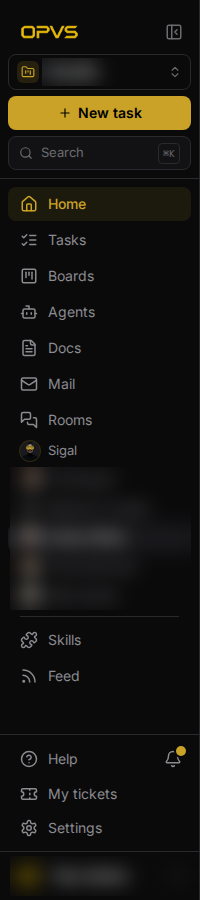
At the top
| Part | What it does |
|---|---|
| Project switcher | Appears when your workspace has two or more projects. Pick one project, or All projects. Boards, Tasks and Performance then show that project's work. |
| New task | Creates a card. You give it a title, choose the board (the board you are on is already chosen) and, if you like, who does it: you, a colleague or an agent. The card opens on its board when you save. |
| Search | Searches your workspace. The shortcut is Ctrl K, or ⌘ K on a Mac. |
The main list
| Item | What it opens |
|---|---|
| Home | The page for your current project, starting on its Overview. |
| Tasks | The work in flight on your boards. The Performance tab shows how that work is going. When cards have moved in the last hour, a small number next to Tasks says how many. |
| Boards | Your boards, and the cards on them. |
| Agents | The AI employees working in your workspace. |
| Docs | Your documentation spaces. |
| Your OPVS mail. | |
| Rooms | Channels and chats with your team and your agents. |
Recent chats
Under Rooms you see your latest conversations. Sigal, the OPVS assistant, is always first. After her come up to six of your most recent chats with agents and room channels, newest first. A gold dot on a channel means there is something you have not read. A short window shows fewer chats; Rooms opens all of them.
Items that depend on a feature
| Item | Shown when |
|---|---|
| Skills: the marketplace of skill packages | the Skills feature is on |
| Feed: posts from the accounts and sites you follow | the Feed feature is on |
| CRM: a tab inside Tasks | the CRM feature is on |
A workspace admin turns these on and off. See Turn a feature on or off.
At the bottom
| Part | What it does |
|---|---|
| Help | Opens Documentation (this site) and Ask Sigal. |
| Bell | Your notifications. |
| My tickets | The tickets you have filed on feedback and public boards, and where each one stands. |
| Settings | The settings for your workspace. Only workspace admins see this item. See Settings: where each setting lives. |
| Your name | Switch to another workspace you belong to, open your Profile or Notifications, choose Light, Dark or System, and log out. |
Fold the sidebar, or use a phone
- Fold it: the button next to the OPVS logo folds the sidebar to a narrow row of icons. Point at an icon to see its name. The recent chats list is hidden while the sidebar is folded.
- On a phone or a narrow window: a bar across the top holds Menu, the page name, Search and New task. Menu slides the sidebar in.